
I still remember the first time I fired up Free Fire on my PC. The cramped mobile screen that had been my battlefield for months suddenly expanded into a glorious widescreen display, and every headshot felt more precise. If you’ve ever squinted at a tiny phone screen while trying to spot an enemy hiding in the grass, you know exactly why so many of us want to experience Free Fire on a bigger setup. But here’s the catch—Free Fire was built from the ground up for mobile devices, and even in 2026, there’s no native PC version available. So, how do we get that crisp, desktop shooter experience?
That’s where emulators come into the picture. An emulator is essentially a piece of software that mimics a mobile environment on your computer, tricking the game into thinking it’s running on a smartphone or tablet. With the right emulator, you can enjoy all the intense battle royale action, but with the added benefits of a mouse and keyboard, smoother frame rates, and a screen size that doesn’t make you regret skipping your eye exam. Let me walk you through the whole process—from picking the right tool to nailing down your controls—so you can drop into Bermuda or Kalahari with confidence.
What Exactly Is an Emulator and Why Do You Need One?
If you’re new to the concept, think of an emulator as a digital shapeshifter. It creates a virtual version of Android (or iOS, though Android emulators are far more common) right on your Windows or Mac machine. Once this virtual device is running, you can install Free Fire directly from the Google Play Store, and the app will behave exactly like it does on your phone—except you’re clicking with a mouse instead of tapping with your thumb.
The real magic is how emulators handle controls. Keyboard mapping features let you assign actions like shooting, crouching, or opening the map to specific keys, and you can even set custom areas on the screen for touch-based actions like dragging the minimap. After years of testing different solutions, I’ve found that the experience can be surprisingly close to a dedicated PC shooter, especially when you fine-tune the sensitivity.
Step-by-Step: How to Download and Play Free Fire on Your PC
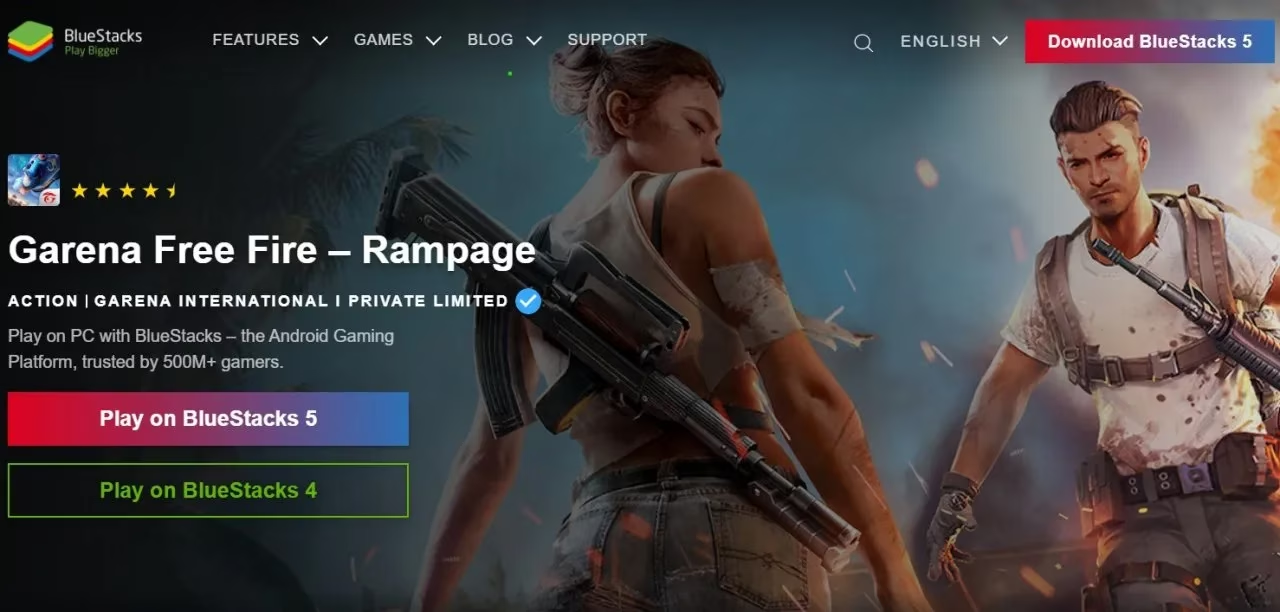
Alright, let’s get hands-on. For this guide, I’m going to use BlueStacks, which has remained one of the most reliable and gaming-optimized emulators through 2026. Its latest version, BlueStacks 10 (also called BlueStacks X), uses hybrid cloud technology to let you play even on lower-end PCs, but the classic BlueStacks 5 with Android 11 support is still a rock-solid choice for Free Fire.
Here’s the straightforward path I follow whenever I set up a new machine:
-
Download the emulator – Head to the official BlueStacks website and grab the installer that matches your operating system. By 2026, both Windows 11 and macOS Sonoma are fully supported, and the download is a straightforward executable.
-
Install and launch – Run the installer, accept the defaults, and let the program set up its virtual Android device. The first launch might take a few minutes because it’s initializing the Android runtime, so be patient.
-
Sign in to Google Play – Just like on a new phone, you’ll need to log into a Google account to access the store.
-
Search for Free Fire – In the Play Store app inside BlueStacks, type “Free Fire” and hit install. The game will download its data—around 1.5 GB depending on updates—straight to the emulator.
-
Launch and enjoy – Once installed, the Free Fire icon appears on the BlueStacks home screen. Click it, let the game compile shaders for the first time, and you’re in!
After a successful installation, you’ll notice that the game prompts you to choose your control scheme. BlueStacks offers a pre-configured key mapping for Free Fire, but the real fun begins when you tailor everything to your own playstyle.
Configuring Your Controls for a Competitive Edge
Here’s where the emulator truly shines. Every major Android emulator includes a control editor that lets you drag and drop action buttons onto the screen overlay. In BlueStacks, click the gear icon or the keyboard icon on the side toolbar to open the Game Controls menu. I usually spend a good fifteen minutes tweaking this because a poorly placed crouch button can get you eliminated faster than a poorly timed revive.
For Free Fire, my personal configuration looks something like this:
| Action | Assigned Key | Reason |
|---|---|---|
| Movement | WASD | Standard for any PC shooter |
| Fire | Left mouse click | Feels natural and responsive |
| Scope | Right mouse hold | Lets me aim precisely without lifting a finger off the keyboard |
| Crouch / Prone | C and Z | Fast access; I use my thumb on the spacebar area for jump |
| Reload | R | Muscle memory from other shooters |
| Map | Tab | Quick glance for zone and enemy positions |
| Free Look | Q | Important for scanning surroundings while running |
You can also set a aim, pan, and shoot mode that locks the cursor in the center of the screen, simulating a true FPS behavior. This eliminates the need to constantly re-center your mouse, and once you get used to it, your accuracy will blow your mobile-self away.
Does all this manual configuration sound like a hassle? Possibly, but isn’t the payoff of pulling off a perfect drag headshot worth a few minutes of setup? I certainly think so.
Other Emulators Worth Trying in 2026
BlueStacks isn’t the only fish in the sea. Depending on your system specs or personal preference, you might find one of these alternatives more to your liking:
-
LDPlayer 9 – Purpose-built for gaming, it offers high FPS support and excellent compatibility with Free Fire. The latest version on Android 9 is lightweight and includes a dedicated macro recorder for combos.
-
GameLoop – This is the official emulator for several Tencent titles, but since Garena’s Free Fire is also supported, it can be a solid choice with pre-optimized settings.
-
MEmu Play – Known for its stability and ability to run multiple instances, which is handy if you want to manage alternate accounts.
-
NoxPlayer – Still kicking in 2026 with a clean interface and robust key mapping, though make sure you download it from the official source to avoid bloatware.
-
Andy and GenyMotion – These are more developer-oriented, but tech enthusiasts may appreciate the customization depth they offer.
I’ve personally bounced between BlueStacks and LDPlayer over the last couple of years, and both have handled Free Fire without a hitch—as long as your PC has at least 8 GB of RAM and a dedicated GPU.
How Does Matchmaking Work for Emulator Players?
This is a question I hear all the time: “Will I be thrown into lobbies with mobile players and have an unfair advantage?” The answer is no, and for good reason. Free Fire’s developers implemented a separate matchmaking pool for emulator users several years ago to keep the playing field level. Once the game detects you’re running on an emulator (and it does so with high accuracy), you are matched exclusively against other players who are also on emulators.
While this protects mobile gamers, it also means that queue times can be longer, especially during off-peak hours or in less populated regions. You might find yourself waiting a minute or two extra for a Clash Squad match. Is that frustrating? Sometimes. But think about it: would you really want to demolish thumb players just because you have a keyboard and mouse? That wouldn’t be very sportsmanlike, and honestly, going up against fellow emulator users who have also mastered their setups makes for far more intense and satisfying battles.
Final Thoughts on Bringing Free Fire to the Big Screen
Playing Free Fire on a PC in 2026 is not just a novelty—it’s a genuine way to rediscover a game you thought you knew inside out. The wider field of view, the tactile feedback of mechanical keys, and the sheer comfort of a chair instead of hunched shoulders over a phone… it all adds up. Are there occasional hiccups? Yes, like dealing with emulator-specific bugs or longer matchmaking. But for me, the trade-off has been overwhelmingly positive.
If you’re considering making the switch, grab a reliable emulator, invest a little time in key mapping, and prepare to see those Booyah moments in a whole new light. Just remember: this is still the same Free Fire, with the same fast-paced action and tight gunplay—only now, you have a much better seat in the arena.